
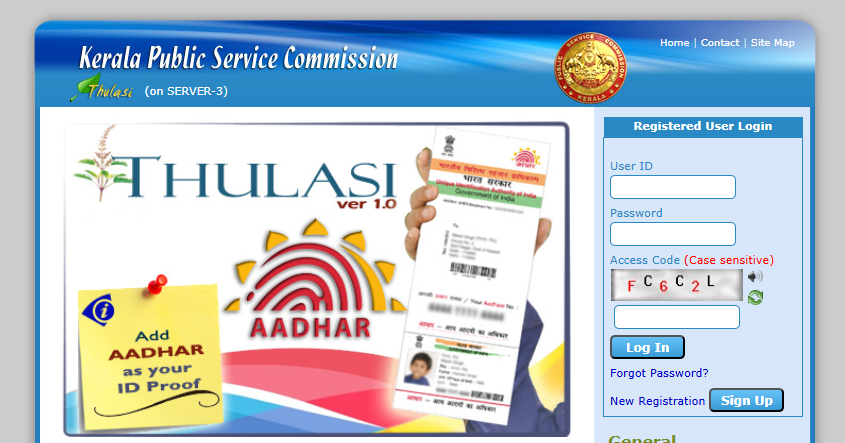
Kerala PSC Thulasi: The Ultimate Guide to One-Time Registration & Profile Management
Securing a government job is a dream for many in Kerala, and the journey begins on a single, essential website: the Kerala PSC Thulasi portal. For fresh aspirants, navigating the system can feel a bit daunting at first.
Whether you are aiming for Last Grade Servants (LGS), Lower Division Clerk (LDC), or specialized technical positions, mastering the Thulasi portal is your absolute first step.
What is Kerala PSC Thulasi?
Thulasi is the official One-Time Registration (OTR) portal of the Kerala Public Service Commission. Gone are the days of filling out physical applications for every single notification. With Thulasi, you create a comprehensive digital profile once, and you can apply for any relevant upcoming exam with just a few clicks.
Your submitted details—such as educational qualifications, photograph, and signature—remain valid in the system for years, saving you from entering the same information repeatedly.
Step-by-Step: How to Create Your Thulasi Profile
If you are new to the Kerala PSC ecosystem, here is how to set up your digital identity:
- Visit the Official Portal: Go to the official Kerala PSC website and navigate to the One-Time Registration (Thulasi) section.
- Register as a New User: Click on the registration link to start a fresh profile.
- Enter Basic Details: Fill in your name exactly as it appears on your SSLC certificate, date of birth, gender, and parents’ names. Accuracy here is critical, as any mismatch with your certificates can cause issues during document verification.
- Choose User ID & Password: Create a unique User ID and a secure password. Make sure to store these safely, as you will need them throughout your recruitment journey.
- Verify Contact Info: Provide an active mobile number and email address, which will be verified via OTP.
- Upload Photograph and Signature: Pay close attention to the strict formatting guidelines:
- Photograph: Must be recent (taken within the last 6 months) with your name and the date the photo was taken printed at the bottom.
- Signature: Must be scanned clearly against a white background following the exact pixel and file size dimensions specified by the PSC.
Key Features of the Thulasi Dashboard
Once your profile is active, your dashboard gives you access to several essential tools:
- My Profile: Update your profile whenever you acquire new educational qualifications, additional experience, or change your contact details.
- Notifications: Browse newly released gazette notifications that match your specific educational background.
- Apply Now: Quickly submit applications for eligible posts using your pre-saved OTR data.
- Admission Tickets: Download your hall tickets for written examinations, endurance tests, or interviews.
- Ranked Lists & Results: Check your registration status, shortlists, and final rank lists.
Common Mistakes to Avoid
- Incorrect Photo Formats: Blurry photos or missing name-and-date tags are primary reasons for application rejections. Always double-check the image guidelines.
- Mismatched Data: Ensure that your claimed qualifications match your actual certificates. Discrepancies found during final verification lead to disqualification.
- Lost Credentials: Keep your login details secure to avoid missing crucial notification deadlines or hall ticket download windows.